mirror of
https://github.com/logos-blockchain/logos-sql-zone.git
synced 2026-06-07 18:29:39 +00:00

309 lines
16 KiB
Markdown
309 lines
16 KiB
Markdown
# Logos SQLite Zone Sequencer and Indexer Demo
|
|
|
|
This directory contains a reference implementation of a Sovereign Zone solution using the Logos Blockchain as a simple database server.
|
|
## System Architecture
|
|
|
|
In this demo, the sequencer acts as the primary maintainer of a [Steelsafe password manager](#steelsafe-a-pure-rust-safe-tui-password-manager), with DB updates published to the Logos Blockchain. Other parties, known as indexers, can follow these updates to reconstruct the same database locally as a read-only password manager.
|
|
|
|
1. **Sequencer**: Is the central authority maintaining the password database. Users can create and copy passwords through a TUI. Database updates are posted as encrypted inscriptions to the Logos Blockchain.
|
|
2. **Logos Blockchain**: Acts as the immutable ledger from which the database can be reconstructed by any interested party.
|
|
3. **Indexer**: Watches the sequencer's channel for updates. It pulls data from these inscriptions as they come in and reconstructs the password database locally. Users can interact with the password manager (read only) via a similar TUI.
|
|
|
|
---
|
|
|
|
## Project Structure
|
|
|
|
Each component is a standalone service that can be run independently or via Docker.
|
|
|
|
| Component | Directory | Responsibility |
|
|
| --- | --- | --- |
|
|
| **Sequencer** | `sequencer/` | Maintaining database and posting updates. |
|
|
| **Indexer** | `indexer/` | Channel monitoring and reconstructing database based on updates. |
|
|
| **Common Password Manager Functionality** | `common/` | Password manager code used by both the sequencer and indexer. |
|
|
|
|
---
|
|
|
|
## Getting Started
|
|
|
|
### Prerequisites
|
|
|
|
* **Rust**: For building the Sequencer and Indexer binaries, if running the helper script.
|
|
* **Logos Node**: To read from and write to the Logos Blockchain.
|
|
|
|
### 1. Configuration
|
|
|
|
If you want the program to get information from the environment, copy the example environment file and fill in your information before exporting the variables.
|
|
|
|
```bash
|
|
cp testnet/sqlite-zone-demo/.env.example-local testnet/sqlite-zone-demo/.env-local
|
|
set -a
|
|
source testnet/sqlite-zone-demo/.env-local
|
|
set +a
|
|
```
|
|
|
|
You can also provide these fields via command line arguments (see below).
|
|
|
|
In either case, you will need access to a running **Logos Node**, as well as any credentials needed to interact with the node. If you are running a node locally, ensure the `SEQUENCER_NODE_ENDPOINT` and `INDEXER_NODE_ENDPOINT` in your `.env-local` both point to your local node.
|
|
|
|
### 2. Running the Sequencer
|
|
|
|
You can run the following file to execute the sequencer directly: `run-local.sh`.
|
|
|
|
The script automates building binaries, managing data directories, and linking environment variables between services.
|
|
|
|
```bash
|
|
# Usage
|
|
./run-local.sh <service> [--env-file <path-to-env>] [--clean]
|
|
|
|
# Run only a specific component
|
|
./run-local.sh sequencer --env-file .env-local
|
|
|
|
# Start fresh (deletes local databases/keys)
|
|
./run-local.sh sequencer --env-file .env-local --clean
|
|
|
|
```
|
|
|
|
The information in the environment variables can also be provided to the script via command line arguments. The full list of arguments is provided below:
|
|
|
|
| Argument with Example | Description|
|
|
| --- | --- |
|
|
| `--node-url http://localhost:8080` | Logos blockchain node HTTP endpoint. |
|
|
| `--db-path ./database.db` | Path to the SQLite database file. |
|
|
| `--key-path ./sequencer.key` | Path to the signing key file (created if it doesn't exist). |
|
|
| `--node-auth-username username` | Basic auth username for node endpoint. |
|
|
| `--node-auth-password password` | Basic auth password for node endpoint. |
|
|
| `--queue-file ./queue.txt` | Path to the queue file for pending SQL statements. |
|
|
| `--checkpoint-path ./sequencer.checkpoint` | Path to the checkpoint file for crash recovery. |
|
|
| `--channel-path ./channel.txt` | Path to the channel ID file (for the indexer to read). |
|
|
|
|
Running this script should allow you to interact with the read & write password manager.
|
|
|
|
### 3. Running the Indexer
|
|
|
|
You can run the following file to execute the sequencer directly: `run-local.sh`.
|
|
|
|
The script automates building binaries, managing data directories, and linking environment variables between services.
|
|
|
|
Make sure to provide the Channel ID obtained from the Sequencer to the Indexer so it can monitor the correct channel. This can be done via the `--channel-path` command line argument, or by setting the `CHANNEL_PATH` environment variable.
|
|
|
|
```bash
|
|
# Usage
|
|
./run-local.sh <service> [--env-file <path-to-env>] [--clean]
|
|
|
|
# Run only a specific component
|
|
./run-local.sh indexer --env-file .env-local
|
|
|
|
# Start fresh (deletes local databases/keys)
|
|
./run-local.sh indexer --env-file .env-local --clean
|
|
```
|
|
|
|
The information in the environment variables can also be provided to the script via command line arguments. The full list of arguments is provided below:
|
|
|
|
| Argument with Example | Description|
|
|
| --- | --- |
|
|
| `--node-url http://localhost:8080` | Logos blockchain node HTTP endpoint. |
|
|
| `--db-path ./database.db` | Path to the SQLite database file. |
|
|
| `--key-path ./sequencer.key` | Path to the signing key file (created if it doesn't exist). |
|
|
| `--node-auth-username username` | Basic auth username for node endpoint. |
|
|
| `--node-auth-password password` | Basic auth password for node endpoint. |
|
|
| `--channel-path ./channel.txt` | Path to the channel ID file (for the indexer to read). |
|
|
|
|
#### Notes on Using the Read-Only Indexer Password Manager
|
|
While the Sequencer provides a fully functional instance of the Steelsafe password manager, the Indexer has a similar one that is read-only. New passwords cannot be created, but passwords obtained from the blockchain can be read when the correct master password is provided.
|
|
|
|
In the Indexer's terminal window, make sure to wait for the "Applied X statement(s)" info message from the Indexer to make sure it received the latest updates before querying. This may take a few minutes, so please be patient.
|
|
|
|
> When you see an "Applied X statement(s)" message, refresh the Indexer manager by pressing 'R' to see the newest passwords.
|
|
|
|
## Steelsafe: a pure Rust, safe, TUI password manager
|
|
|
|
|
|
|
|
Steelsafe is a minimalistic, portable, personal password manager with a terminal
|
|
user interface (TUI), written entirely in safe Rust (not counting dependencies).
|
|
|
|
It aims to follow best practices of cryptography and secure software engineering.
|
|
In particular:
|
|
|
|
* It uses strong, up-to-date cryptographic algorithms for key derivation (Argon2),
|
|
encryption (XChaCha20), and authentication (Poly1305). It pads passwords to an
|
|
integer multiple of a reasonable block size (256 bytes) to avoid leaking their
|
|
length. The settings of the Argon2 hash function are the [recommended values][1]
|
|
(19 MB RAM, Argon2id algorithm variant, 2 iterations, 1 degree of parallelism).
|
|
* The length of the KDF salt follows the recommended value, too (16 bytes), and
|
|
the variant of ChaCha20 with a longer nonce (24 bytes), XChaCha20 is used. The
|
|
latter allows us to use randomly-generated nonces without any real risk of ever
|
|
repeating them.
|
|
* Salts and nonces are generated using a cryptographically-strong PRNG, and the
|
|
combination of the internal structure of the code and database constraints make
|
|
salt or nonce reuse impossible **within the same database.** There's **no way**
|
|
for the software to guarantee salt and nonce uniqueness **globally,** across DBs.
|
|
* Cleartext secrets are securely overwritten after use under as many circumstances
|
|
as possible. This is not _always_ possible, so it is done on a best effort basis.
|
|
* It doesn't expose these details to the user, so it's impossible to set them to
|
|
potentially insecure values.
|
|
* The application authenticates both the encrypted secret and all of its cleartext
|
|
metadata, providing tamper detection for the label, account name, and modification
|
|
date of each stored password. No data is stored unauthenticated in the database
|
|
(the only exception is the unique ID of the password, which is not shown to the
|
|
user, and it is only a semantically meaningless, sequential integer anyway).
|
|
* The application itself does not use any `unsafe`, and this is enforced via the
|
|
relevant `#![forbid(unsafe_code)]` directive. Cryptography-related dependencies
|
|
are only from a trusted, well-known source, namely: the [RustCrypto][2] project.
|
|
* The data are stored in a battle-tested, structured, robust, and accessible format:
|
|
[SQLite3][3]. SQLite is one of the long-term storage formats recommended by the
|
|
United States Library of Congress.
|
|
* The database and cryptography logic are stand-alone, testable, and tested, so we
|
|
can be sure that they are actually doing what we want them to do.
|
|
|
|
Due to its simplicity and zero-config nature, the application is primarily intended
|
|
for **personal** use; a good use case is painless migration to a new computer.
|
|
The use of an on-file database means that the migration of the password database is
|
|
trivially done by copying over the SQLite file to the new location, as there's no
|
|
migration scripts to run or services to log in to.
|
|
|
|
Secret entries are individually encrypted using a password to be specified upon
|
|
insertion of the new entry. There is no single "master" password or master key;
|
|
if you want, you can encrypt each individual entry using a different password.
|
|
|
|
Of course, this approach has its downsides. For example:
|
|
|
|
* There is no automatic synchronization across locations, computers, and profiles.
|
|
* There is no simple way to change the password for every entry at once.
|
|
|
|
These make Steelsafe largely unsuited for corporate use, but we believe that it will
|
|
still make a fine addition to the power user's toolbox.
|
|
|
|
### Disclaimer
|
|
|
|
This software has **NOT** yet been formally audited by a security expert. If you are
|
|
in infosec/pentesting/verification, and you are willing to take a look, please contact
|
|
me.
|
|
|
|
### Usage & Features Overview
|
|
|
|
The program takes no command-line arguments, starting it is as simple as typing
|
|
`steelsafe` at the prompt.
|
|
|
|
Steelsafe currently offers the bare minimum functionality required for convenient
|
|
everyday use:
|
|
|
|
* Adding new password entries to the database
|
|
* Decrypting, authenticating, and copying a password to the clipboard
|
|
* Searching entries by their metadata (label/title or account/username)
|
|
|
|
The bulk of the screen is occupied by the contents of the password database, one
|
|
entry per row. The title, account name, and last modification date (currently, this
|
|
is always the date of creation) are displayed. Use the following keys to access the
|
|
basic features:
|
|
|
|
* `q`: Quit application
|
|
* ⬇️, `j`, `<TAB>`: Select next entry
|
|
* ⬆️, `k`: Select previous entry
|
|
* `1`: Select first entry
|
|
* `0`: Select last entry
|
|
* `c`, `<ENTER>`: Ask for decryption password and copy cleartext secret to clipboard
|
|
* `f`, `/`: Find secret by metadata (label or account)
|
|
* `n`: Add new secret entry
|
|
|
|
#### Adding a new entry
|
|
|
|
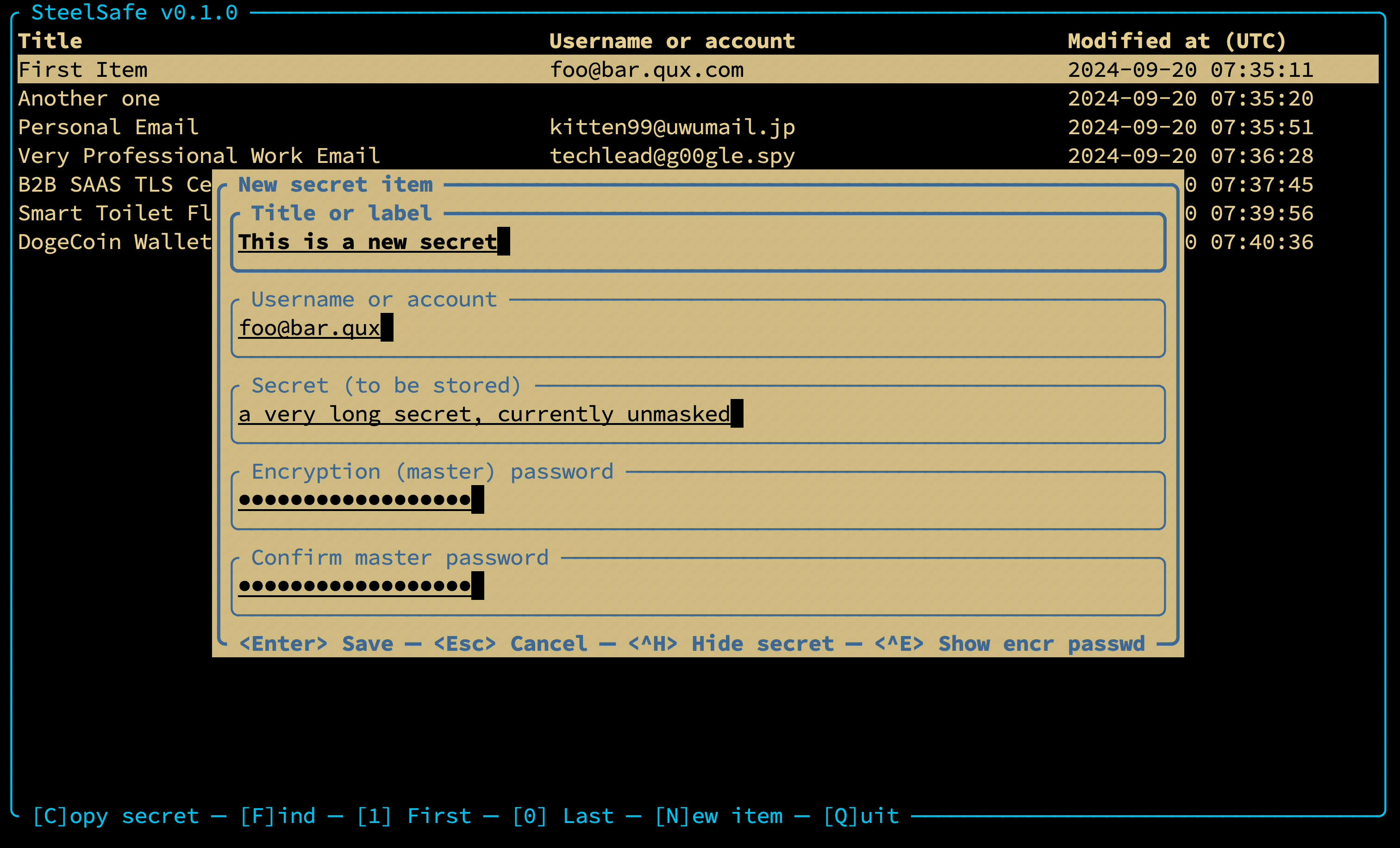
When you press `n`, a dialog for entering a new secret item appears. You will see text
|
|
fields for:
|
|
|
|
* The title of the entry (required)
|
|
* The account name, username, email address, etc. associated with the password (optional)
|
|
* The password itself, or in general, the secret to be encrypted (required)
|
|
* The encryption ("master") password used for encrypting the secret (required). **This may be
|
|
different for each individual entry,** but typically, most people will use a single one.
|
|
|
|
The credential to be encrypted may contain multiple lines, while the master encryption password
|
|
**must not** contain line breaks. The account name, if given, must also span a single line only.
|
|
|
|
Use the up/down arrow keys or `<TAB>` to cycle through the text fields.
|
|
|
|
Use `<Ctrl>+G` to randomly generate a strong, unpredictable, high-entropy password in the
|
|
"secret" field. The generated password will have sufficient length and an appropriate variety
|
|
of characters (including lowercase and uppercase ASCII letters, the digits 0-9, and easily
|
|
accessible punctuation/symbols), which should satisfy even the most paranoid requirements.
|
|
|
|
Press `<ENTER>` to confirm the operation and add the entry, `<ESC>` to cancel and close the
|
|
dialog box, and `<CTRL>+H` or `<CTRL>+E` to show/hide the credential and the master password,
|
|
respectively. Once the new entry is added, it appears at the end of the table immediately, and
|
|
will also be selected.
|
|
|
|
#### Copying an existing credential to the clipboard
|
|
|
|
When you press `c` or `<ENTER>`, the currently selected entry will be decrypted and
|
|
copied to the clipboard. You will be asked for the decryption password, which is also
|
|
used for verifying that the additional data (currently: the title, the account name,
|
|
and the creation/last modification date) has not been tampered with.
|
|
|
|
Press `<ESC>` to cancel the operation, `<ENTER>` to confirm the decryption password
|
|
and copy the item, and `<CTRL>+H` to show/hide the decryption password while typing.
|
|
|
|
#### Finding credentials by name
|
|
|
|
If you have many credentials in your database, you can search for them by their title or
|
|
account name. To enter search mode, press `f` or `/` (the latter should be familiar to users
|
|
of Vim, `less` and `more`). A search field will appear at the bottom. As you type, entries
|
|
in the table will be restricted to those containing the search term. The search text is
|
|
actually a SQL `LIKE` pattern, so you can use the placeholders `_` and `%` to match one or
|
|
more arbitrary characters, respectively.
|
|
|
|
When you see the desired entry appear in the table, press `<ENTER>` to shift focus from the
|
|
search text field to the main table again. Then, you can keep issuing the same commands as
|
|
normally; you'll most likely want to press `c` or `<ENTER>` to copy the entry to clipboard.
|
|
|
|
If you are done searching, press `<ESC>` to exit search mode; this will restore the table of
|
|
credentials and show the full list again. Alternatively, you can press `f` or `/` again to
|
|
re-focus the search field and refine your search term.
|
|
|
|
### A note about salt and nonce reuse and predictability
|
|
|
|
Steelsafe uses SQL uniqueness constraints to prevent duplication of salts and/or nonces
|
|
within a given database. It also uses a cryptographically-secure pseudo-random number
|
|
generator (CSPRNG) for generating salts and nonces that are essentially unpredictable to
|
|
an attacker. However, **it can't possibly enforce global uniqueness across different password
|
|
database files.**
|
|
|
|
The length of the salt and nonce (128 and 192 bits, respectively) make it _highly unlikely_
|
|
that salts and nonces are ever repeated during regular, personal use, given the relatively
|
|
small number of entries, [compared to the number of possible salts or nonces][5]. Yet, to
|
|
avoid catastrophic failure of the key derivation, encryption, and authentication mechanisms,
|
|
it is **strongly recommended that you do not re-use master passwords across databases.** If
|
|
you are only using a single database, as most users will, this criterion is automatically
|
|
fulfilled.
|
|
|
|
As always, you are advised to employ password management best practices with your master
|
|
(encryption and decryption) password(s) as well.
|
|
|
|
What we technically _could_ do is add another level of **database-global** salt to the key
|
|
derivation process. This would be equivalent with a longer salt, but it still wouldn't,
|
|
strictly speaking, _ensure_ global uniqueness across databases, so we simply don't bother.
|
|
|
|
### A note about clipboard behavior
|
|
|
|
On some platforms, especially Linux and other platforms using X11 or Wayland, clipboard
|
|
contents are only available as long as the source application is running. Thus, in these
|
|
environments, you will have to keep Steelsafe running until you are done with the copied
|
|
secret.
|
|
|
|
### Configuration
|
|
|
|
Steelsafe will search the `.steelsaferc` configuration file (in this order) at:
|
|
|
|
* the [project config directory][7]
|
|
* or `$HOME`
|
|
|
|
An example of the config file can be found [here][8]. It is a JSON with self-explanatory
|
|
structure; you can currently use it to change the colors of various UI elements.
|
|
|
|
[1]: https://cheatsheetseries.owasp.org/cheatsheets/Password_Storage_Cheat_Sheet.html
|
|
[2]: https://github.com/RustCrypto
|
|
[3]: https://sqlite.org
|
|
[4]: https://www.rust-lang.org/tools/install
|
|
[5]: https://en.wikipedia.org/wiki/Birthday_attack
|
|
[6]: https://docs.rs/directories/latest/directories/struct.ProjectDirs.html#method.config_dir
|
|
[7]: https://github.com/H2CO3/steelsafe/blob/master/.steelsaferc
|